Your camera times every delivery.
Set your iPhone on the ice, place two zones on the lines, and Curling Split Time Camera measures the split time from release to hog line on its own, with no laser or infrared barriers to buy. A beep marks each crossing and the time is read aloud, best in your AirPods or headphones, so your eyes stay on the ice.

Requires iOS 27 or later. Free to try for 60 minutes of live mode; the full version is a one-time purchase, no subscription.
Features
Automatic timing
Two camera zones start and stop the clock the moment the stone crosses them. The time is taken from the exact video frame of each crossing.
Spoken results
A beep marks each crossing and the time is read aloud in your language. Wear AirPods or other headphones: a rink is usually too loud to hear the iPhone's speaker from the hack, but in your ears you catch every time. "Ready" tells the thrower the timer is armed again.
Tuned to your rink
Adjust sensitivity and debounce to match the lighting and distance of any sheet. A live signal meter shows how close each zone is to triggering.
How it works
-
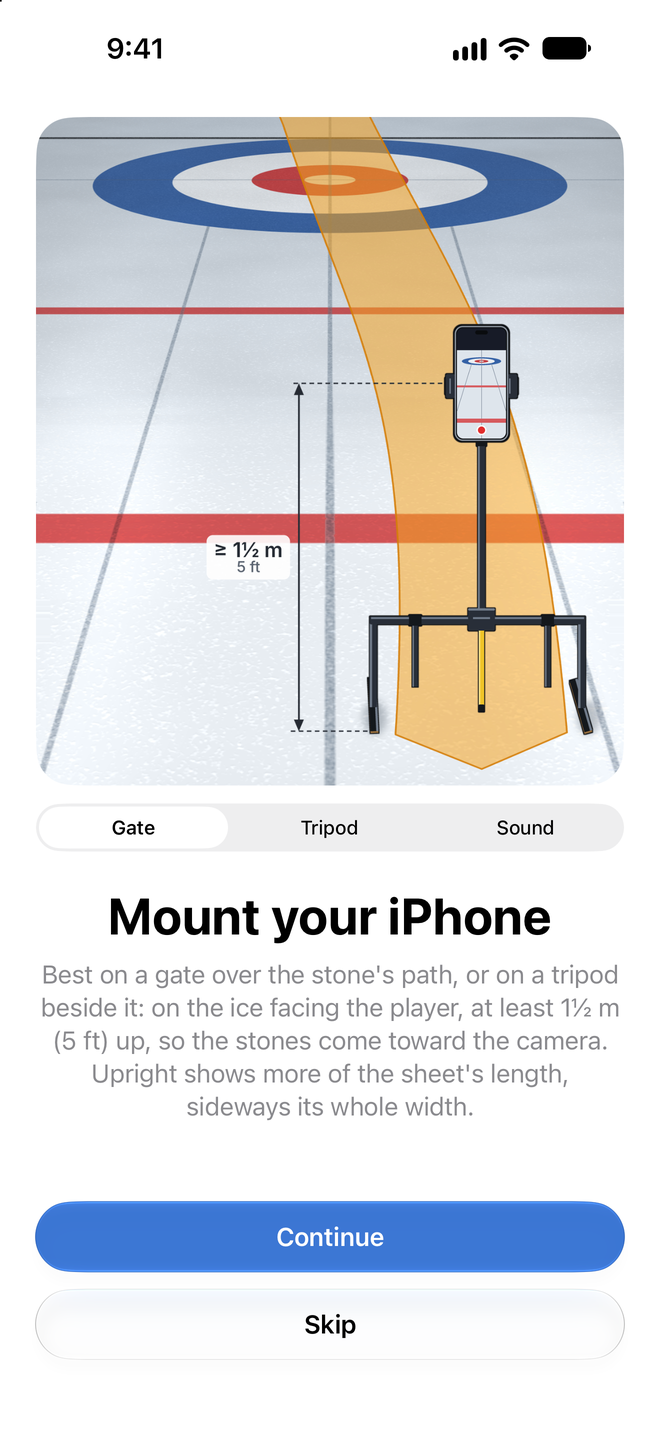
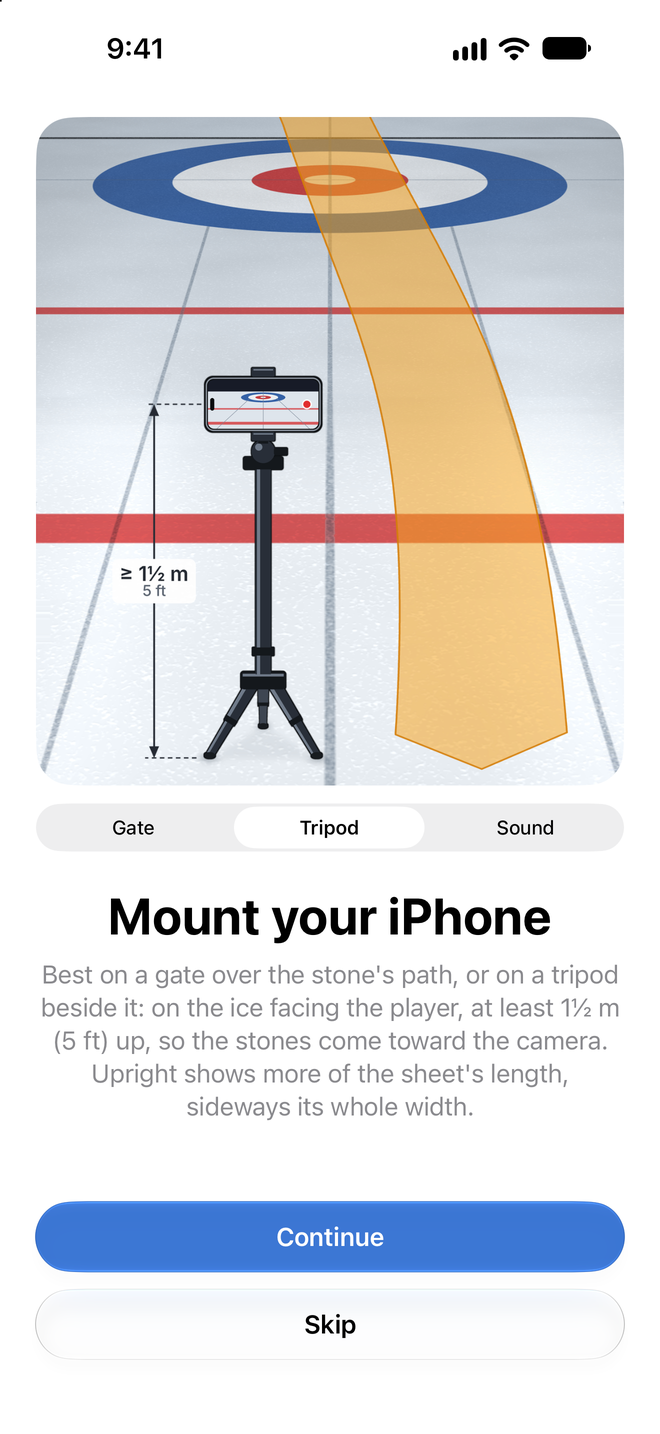
Mount your iPhone Ideally put it on a gate standing over the stone's path, or else on a tripod beside it, at least 1½ m (5 ft) up and looking back toward the hack so the camera sees both the back line and the hog line and the stones come toward it. The higher it is mounted, the better the angle and the more reliable the detection.
-
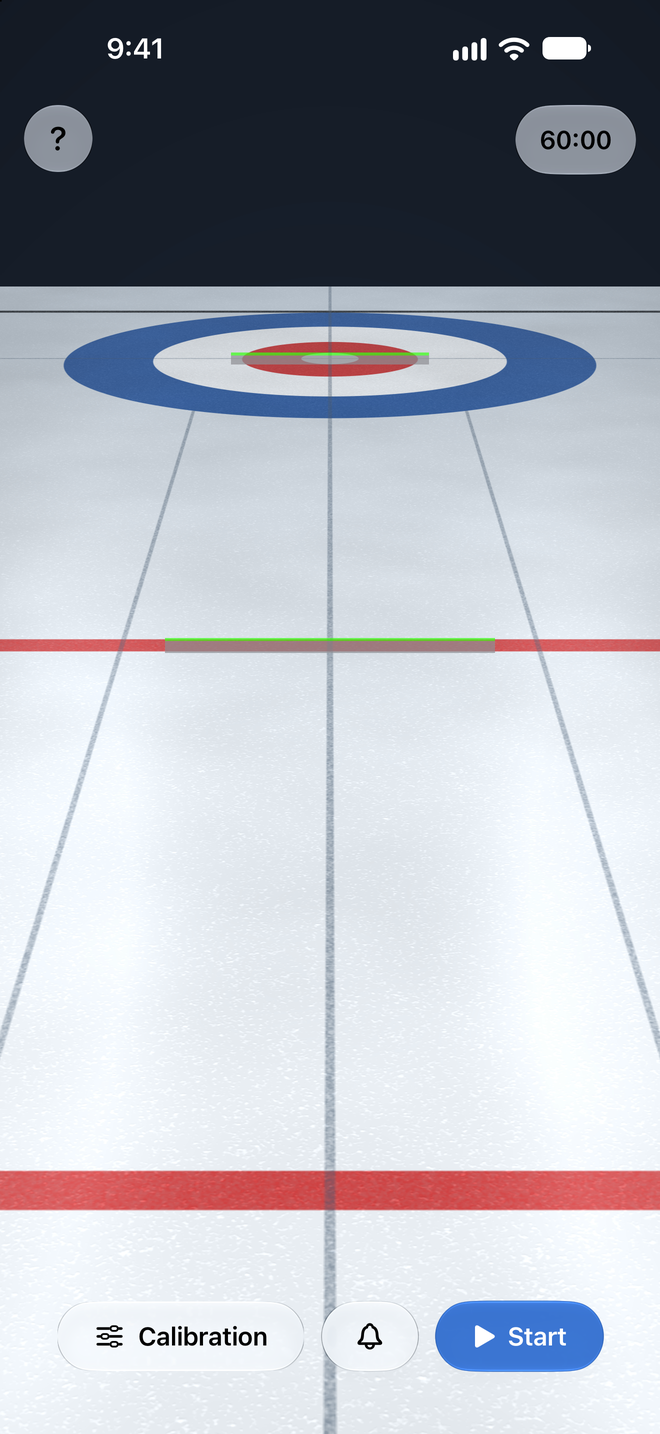
Place the two zones Drag the two bars, up and down or sideways, onto the lines you want to time between, usually the back line and the hog line. A stone trips a zone the instant it reaches the bar's green top edge, so place each bar just below its line, with the green top edge exactly on the line. This matters most for the far line, which looks small. Fine-tune the detector with the sliders if the light is tricky. The Help button explains the mounting, the zones, both sliders and the beep button.
-
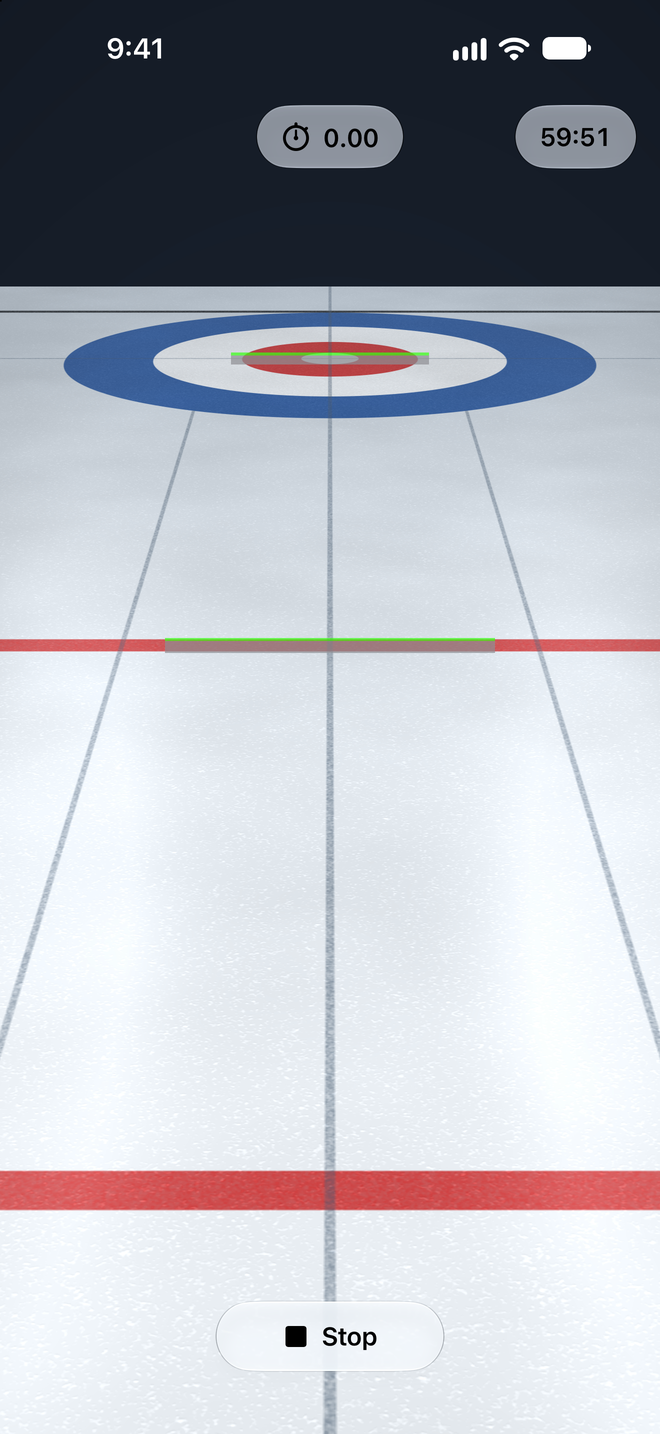
Start and throw Put in your AirPods or headphones and tap Start. When you hear "Ready", deliver the stone. The clock starts at the first zone, stops at the second, and the time is spoken. The timer rearms itself for the next stone. If a stone never arrives, the next one leaving the first zone simply restarts the clock; after 30 seconds without a stone, it goes back to 0.00 by itself.
Screenshots